Tätä opasta ei ole vielä omalla kielelläsi, joten tässä se on englanniksi.
Lyhyesti
- A stream background set is the group of graphics a channel uses around its video: the offline screen, profile banner, panels and the backgrounds of scenes such as starting soon and be right back.
- Twitch's offline screen is 1920×1080, its profile banner 1200×480 and its info panels 640×320.
- Every piece of a channel's graphics should share one background, one type style and one accent colour, so viewers recognise the channel anywhere.
- Slow, gentle motion suits stream backgrounds, because fast movement and heavy grain use more bitrate and can turn blocky on stream.
- Scene backgrounds should leave calm space where the webcam, chat and alerts sit, so those stay readable.
Tällä sivulla
A good stream background is not one image but a set: the offline screen people see when you are not live, the profile banner, the panels under your video, and the backgrounds behind scenes such as starting soon, be right back and just chatting. When all of them share one background, one type style and one accent colour, the channel looks deliberate and recognisable. When each was made on a different day from a different template, it looks like a channel still finding itself.
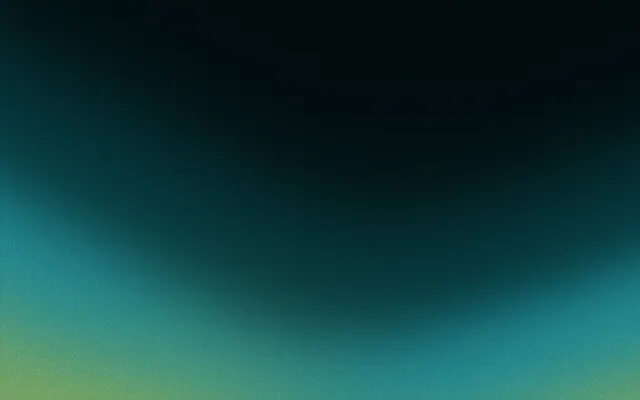
A starting soon scene…
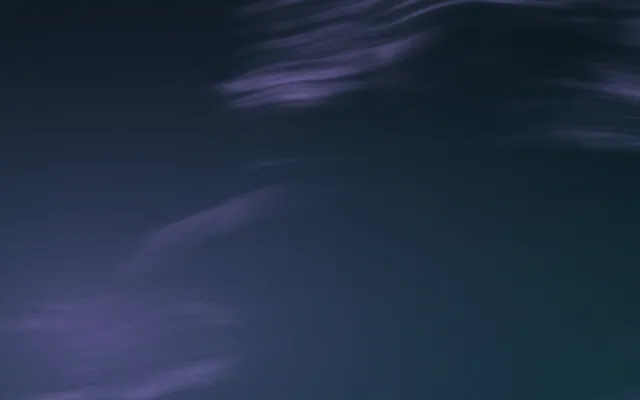
…and the offline screen, from the same background.
This guide covers the sizes, what each piece is for, how to keep them consistent, and the stream-specific details: motion, bitrate and leaving room for your camera and chat. For channel branding beyond graphics, branding for content creators goes further.
Stream background sizes for Twitch
Offline screen 1920×1080
1920 × 1080
Profile banner 1200×480
1200 × 480
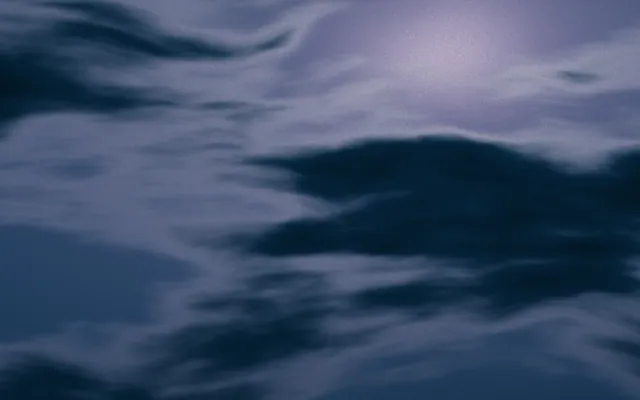
Panel 640×320
640 × 320
| Piece | Size | Where it shows |
|---|---|---|
| Offline screen | 1920×1080 | The video player when you are not live |
| Profile banner | 1200×480 | Across the top of your channel page |
| Panels | 640×320 | Under the player: about, schedule, rules, links |
| Scene backgrounds | 1920×1080 | Behind your camera and overlays on a 1080p canvas |
If you also stream to YouTube or run a Discord server, the same set extends to a YouTube channel art at 2560×1440, thumbnails at 1280×720, and a Discord server banner at 960×540. Social media image sizes lists the rest.
The scenes every channel needs
- Starting soon. A countdown or a simple line while viewers arrive. Music, the stream title and nothing that needs reading closely.
- Just chatting or main scene. The background behind your camera and chat. The calmest piece in the set, because it is on screen the longest.
- Be right back. Short breaks. The same background as starting soon with different words keeps it familiar.
- Ending. A thank you, the next stream time and perhaps a raid target.
- Offline screen. What people see between streams: your schedule and where else to find you.
Build them in that order of importance: the main scene background carries the channel, so design it first and derive the others from it.
How to keep a stream background set consistent
- 1
Choose one background
Pick one gradient or material and use it for every piece. Variety comes from words and layout, not from new backgrounds. Brand consistency explains why repetition builds recognition.
- 2
Choose one type style
One display face for titles, one readable face for details such as schedules. Keep sizes large: much of your audience watches on phones and TVs.
- 3
Choose one accent colour
Use it for alerts, highlights and the live indicator. Take it from the background's palette so everything belongs together.
- 4
Render each size, do not crop
A 1200×480 banner is not a crop of a 1920×1080 screen. Lay each format out again so the brightest part of the background sits where it should.
- 5
Write it down
Keep the colours, fonts and files in one folder so moderators and editors use the same pieces. A brand kit does exactly this.
A schedule panel at 640×320, on the same background as the scenes above.
Motion, bitrate and stream backgrounds
Moving backgrounds make a scene feel alive, and a looping video can be added to most streaming software as a media source set to loop. But everything on screen competes for your stream's bitrate. Video encoders spend more data on detail that changes every frame, so fast motion, flicker and heavy grain are expensive, and when the budget runs out the picture turns blocky. Slow, broad colour movement is cheap to encode and looks smooth.
Costs bitrate
- Fast, busy particle effects
- Heavy, animated film grain
- Sharp patterns that shift every frame
- Loops with a visible jump at the restart
Encodes cleanly
- Slow colour drift across large areas
- Light, static grain or none
- Soft gradients with gentle movement
- A seamless loop of 10 seconds or more
The ideal loop has no visible start or end; seamless loops explains how that works. Gradiently exports designs as seamless looping videos of 5 to 30 seconds with the movement, pace and colour you choose, which suits scene backgrounds well.
Leave room for camera, chat and alerts
A scene background is mostly covered. Sketch where the webcam, chat box, alerts and any game capture sit, then keep the background's brightest, busiest area away from them. Text on overlays needs calm, even colour behind it; the techniques in text on a gradient background apply directly. A background that leaves quiet space for these elements looks designed around your content rather than behind it.
Usein kysyttyä
What size is a Twitch offline screen?
1920×1080 pixels, the same 16:9 shape as the video player.
What size are Twitch panels?
Design panels at 640×320 pixels. They sit under the video player and hold your about, schedule, rules and links.
What size is a Twitch profile banner?
1200×480 pixels. It runs across the top of your channel page.
Should my stream background be animated?
Gentle motion helps a scene feel alive, but keep it slow and broad. Fast motion and heavy grain use more bitrate and can make the stream look blocky.
How do I make my stream graphics look consistent?
Use one background, one type style and one accent colour for every piece, and lay each size out again instead of cropping one image.
Kirjoittanut Gradiently
Gradientlyn tiimi. Gradiently on Markien ympärille rakennettu suunnittelutyökalu: eläviä liukuvärejä, joiden ansiosta kaikki suunnittelemasi näyttää omaltasi.
Katso profiilimme